

Quite a lot of people use Gmail as their main email client on their Android phone. And, some of them have discovered that recently they’ve been missing emails. But, they haven’t changed any settings and it’s not their fault. If you’ve experienced this problem, read on to find out how to fix it.
It’s caused by a recent update to the Gmail app on Android that introduced a new setting. Getting Gmail syncing again is pretty straightforward. Just follow these steps.
1. Open the Gmail app on your Android phone
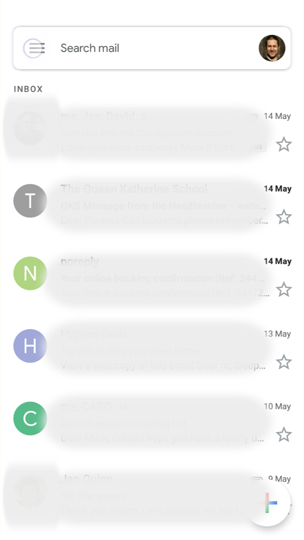
2. Open the settings
To find these, tap on the hamburger icon in the top left of the screen and scroll to the very bottom of the screen. Tap, ‘Settings.’
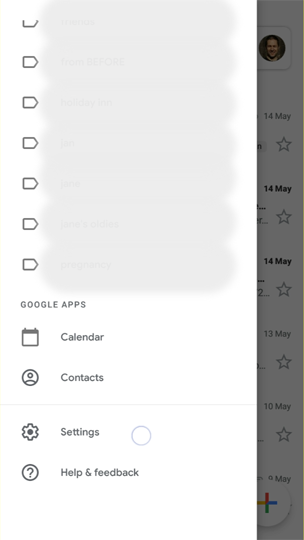
3. Tap on your email address
This will open settings specific to your email account.

4. Tap on, ‘Inbox notifications’
This is the new setting. Before, it was enough to have made sure all notifications were coming through.

5. Tap on, ‘Label notifications’
Inbox, according to Gmail is now treated like any other label.
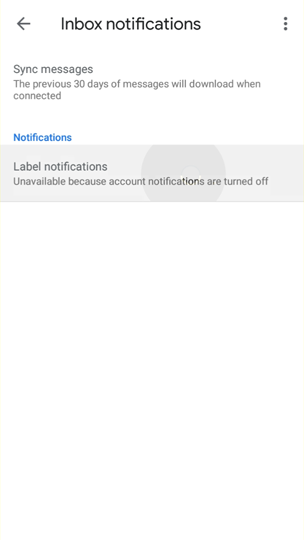
6. Click, ‘OK’

7. Make sure, ‘Notify for every message,’ is ticked
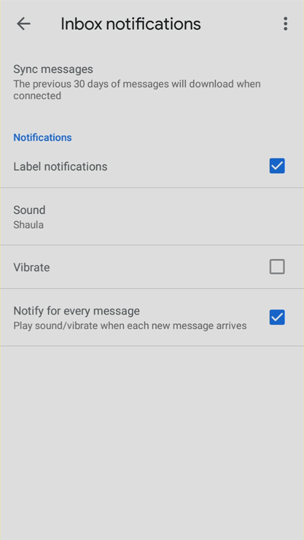
You’re done. Every time you get an email on your Gmail app on Android, you’ll get your notifications as normal.